
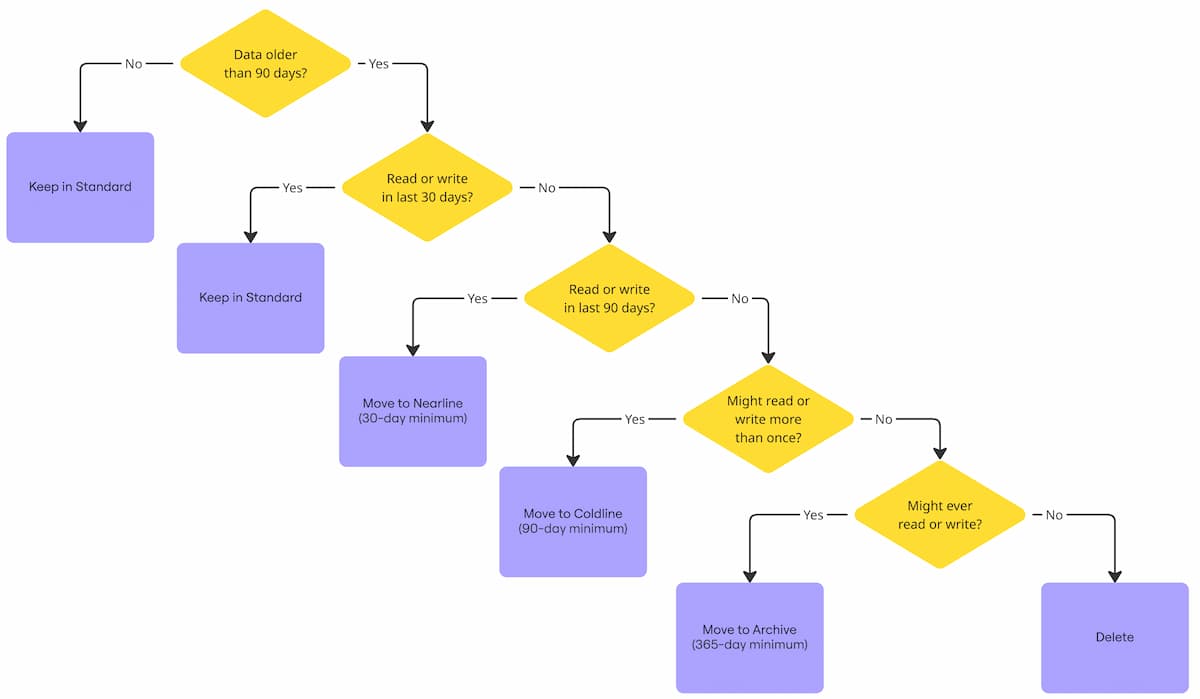
Here’s how to save money on Google Standard Cloud Buckets:
This script shows recommendations based on the flow chart above:
bash <(curl -sL https://gist.githubusercontent.com/kienstra/fcc4c7d06a6e4d140b7fccf8d1106ced/raw/cloud-bucket-recommendations.sh) <project id>Code language: JavaScript (javascript)Lines 2, 3, and 9 are candidates for savings:
READS_LAST_30D	WRITES_LAST_30D	READS_LAST_90D	WRITES_LAST_90D	RECOMMENDATION                	BUCKET             	SIZE_GB	 OBJ_COUNT	REGION
0             	0             	0             	0             	Move to COLDLINE             	example-no-activity   	10890.33 15234     	us-east1
0             	0             	1             	0             	Move to NEARLINE             	archive-legacy  	2048.13	 365       	us-central1
4521987       	2234511       	5123456       	2345678       	None                         	analytics-raw      	1024.55	 198734    	europe-west1
823456        	334221        	912345        	345678        	None                         	analytics-processed	256.02 	 54321     	europe-west1
345           	412           	412           	489           	None                         	terraform-state    	1.24   	 98        	us-central1
23451         	19876         	24567         	20123         	None                         	build-artifacts    	42.88  	 12456     	us-central1
3456789       	12345         	3678901       	13456         	None                         	media-assets       	768.90 	 45678     	asia-east1
0             	0             	0             	0             	Move to COLDLINE             	tmp-staging        	3.12   	 221       	us-east1
123456        	876           	134567        	945           	None                         	audit-exports      	95.44  	 10987     	us-central1
2345          	12            	2567          	14            	None                         	ml-datasets        	1536.77	 3421      	us-west1
Code language: Shell Session (shell)
Let’s verify the first recommendation of "Move to COLDLINE" by looking at Metrics Explorer.
If there was no read or write in the last 90 days, that means the recommendation was correct, and we should move it to "COLDLINE".
Go to the Cloud Storage page for the instance:
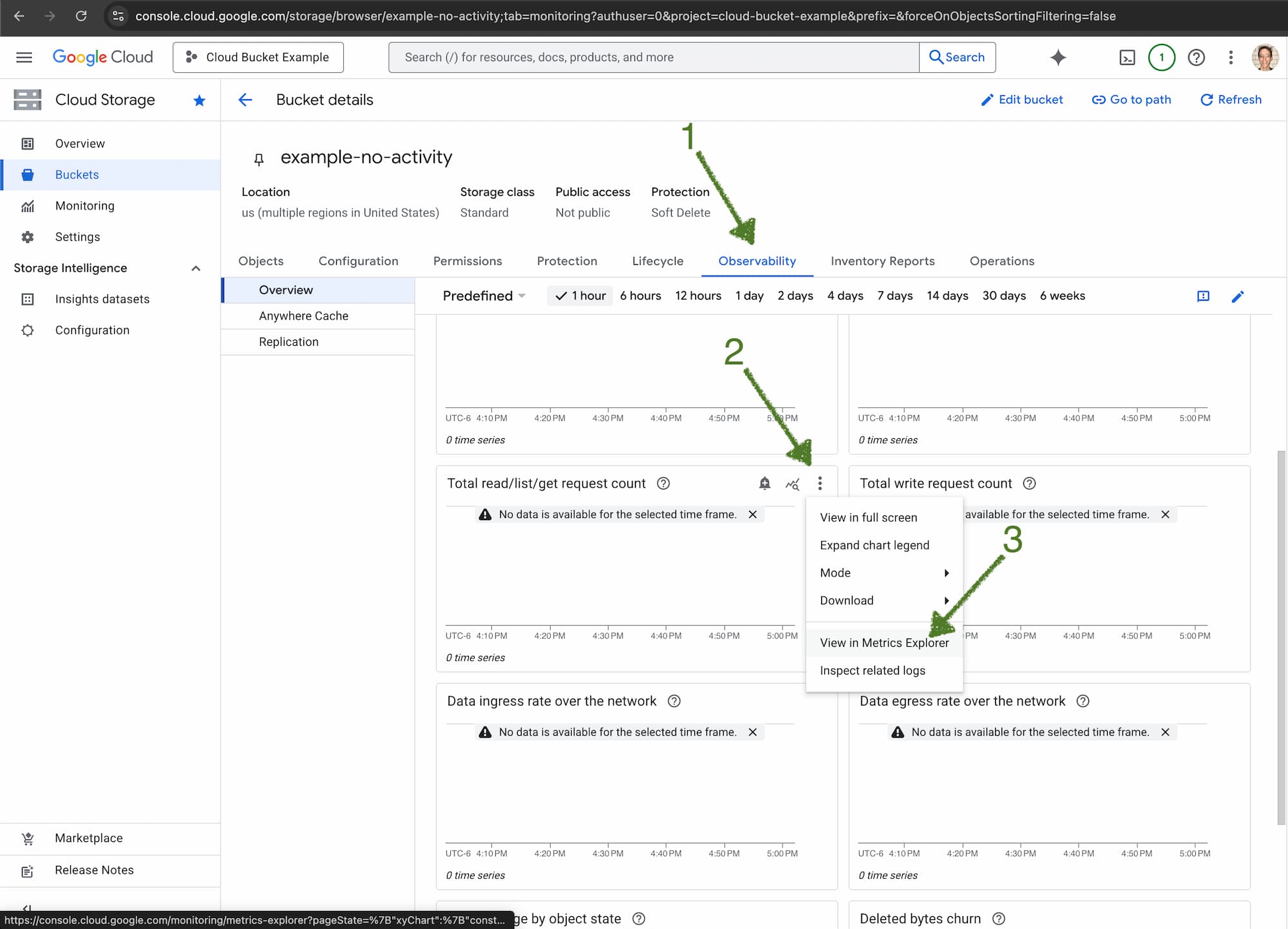
Once you’re in Metrics Explorer, click the first filter, and change it to:
.*Read.*|.*Write.*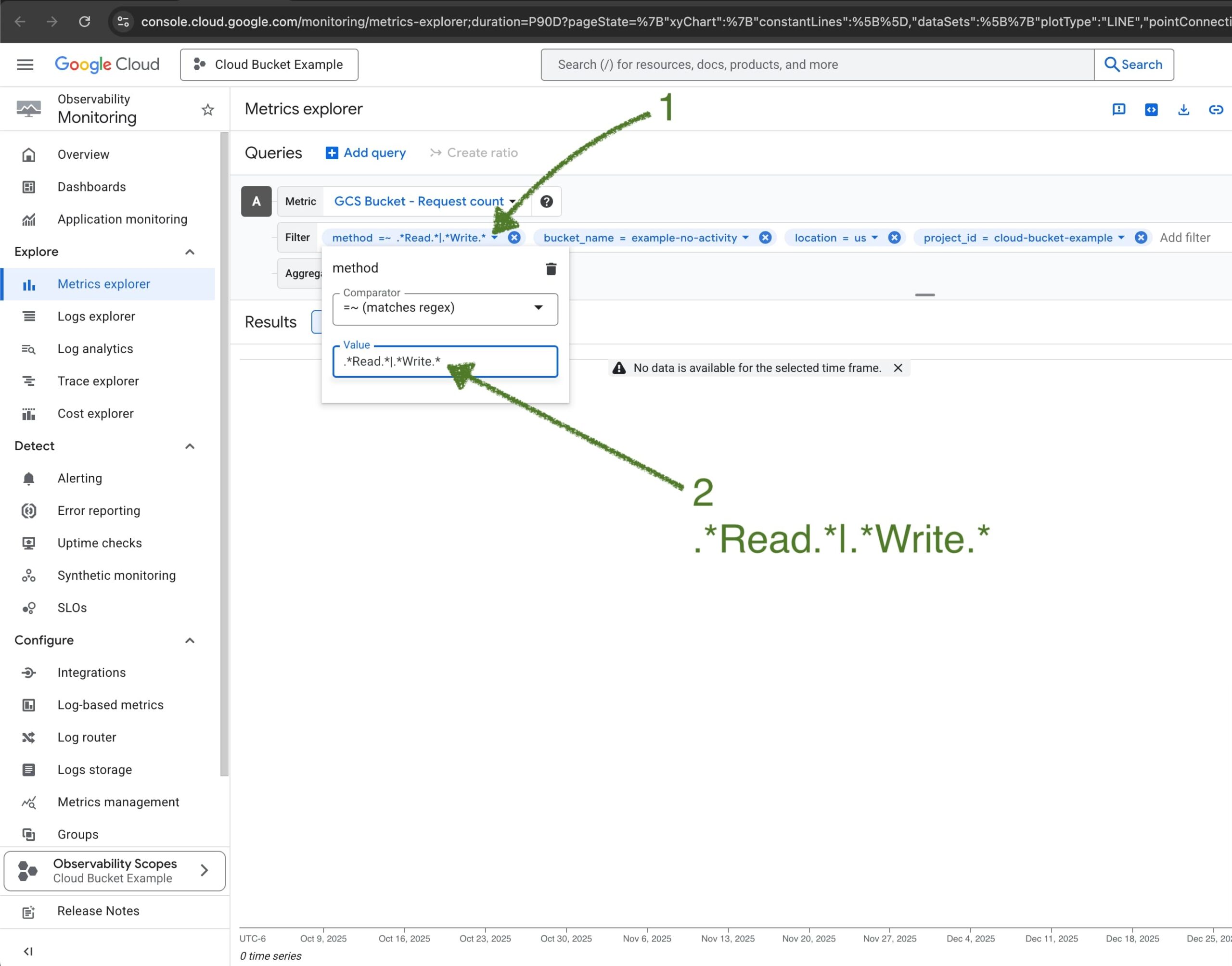
Change the time to 90d (90 days).
If there was no read or write in the last 90 days, you should see “No data is available for the selected time frame”:
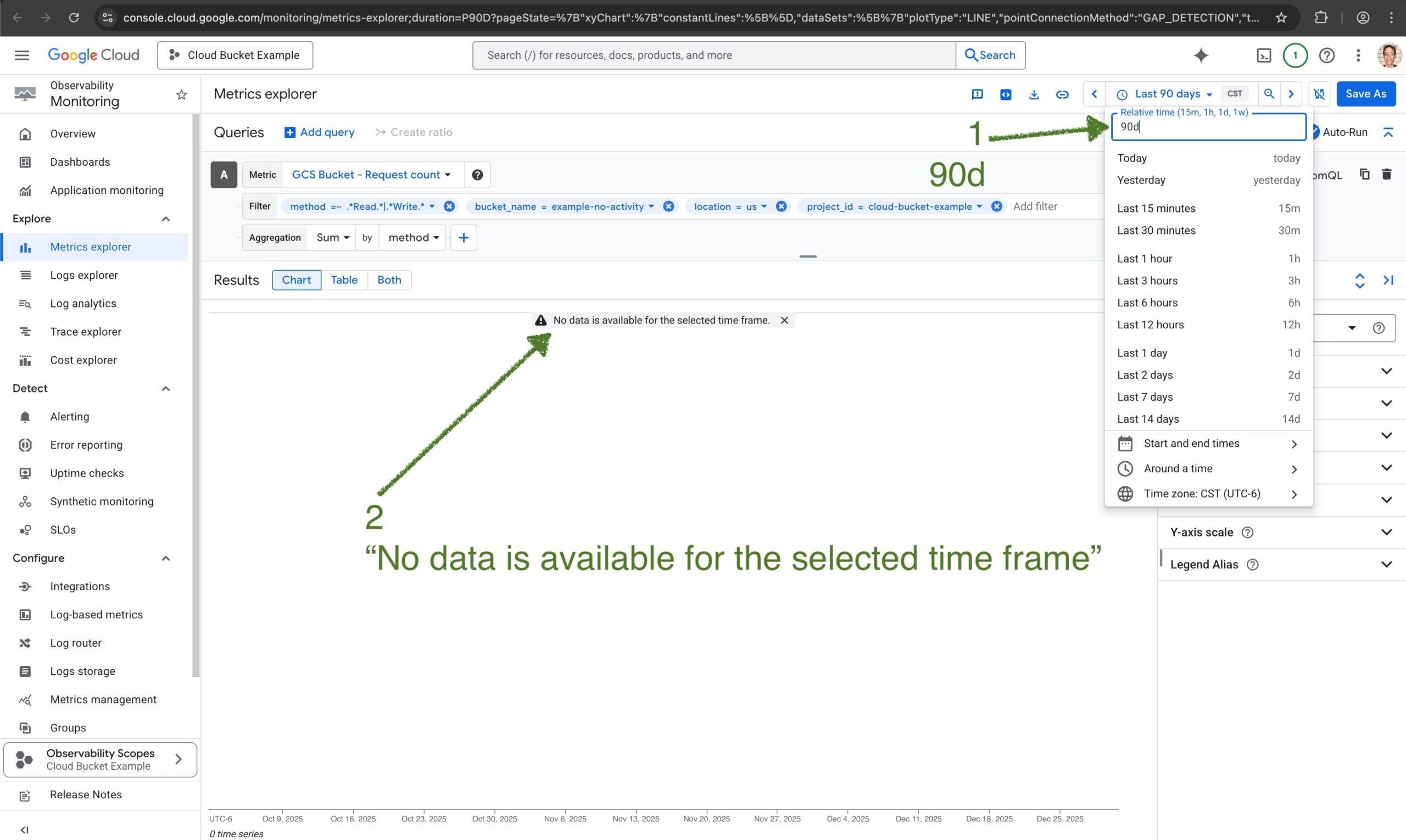
There’s actually no data available, so the recommendation to move to COLDLINE is correct.
You might get to the bottom of the flowchart, and see that you’ll never read or write from the bucket.
Then, it’s best to delete the bucket, and get the maximum savings.